
Tab Overview - Gift Cards
The Gift Cards feature in Loyalty let you provision gift cards to Members, who can then use the gift cards to make purchases in-store and online.
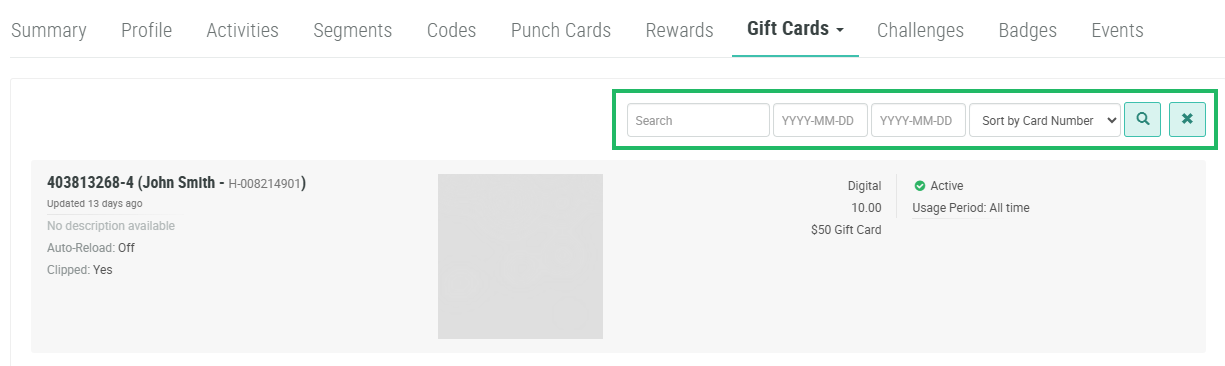
The Gift Cards tab of the Member Profile screen displays each Gift Card this Member owns, its usage, and its current balance.
Note: If you need to issue a new Gift Card to a Member, please see Issue a Gift Card for more information. If you need to adjust the balance on a Member's existing Gift Card, please see Debit or Credit a Gift Card for more information.
To search for a Member's Gift Card:
-
Select Members from the top navigation bar, then select CSR > People from the side navigation menu. The People screen is displayed.
-
On the People screen, search for and select the desired Member (see
-
Select the Gift Cards tab.
-
Optionally, in the Search field, enter the desired text string.
-
Optionally, using the two date fields, define a date range by entering a start date and an end date. The platform will filter the search results to show only Gift Cards that were started within this date range.
-
Click the Search icon. The screen is refreshed to show only the Gift Cards that meet your search criteria. If you entered multiple search criteria, the Gift Card must meet ALL criteria.
-
To sort the search results, select the desired sort order from the Sort By drop-down menu. The default sort order is by: Card Number.
-
Optionally, to remove all search criteria and revert to the default criteria, click the Clear icon.
For additional details, click a Gift Card. The Gift Card Details screen is displayed.
